
AI is changing so fast, and so is FromThePage.
Here’s a look at the AI features we currently offer.
You can create AI drafts for your project either when you start a project for the first time or after it has been uploaded. Before uploading, you can tick the box that says “Generate AI Draft text using Gemini AI.”

If you have an existing collection or individual work you’d like to use, go to the Settings tab, select AI from the side panel, and click the “Create AI drafts for pages without them” button.

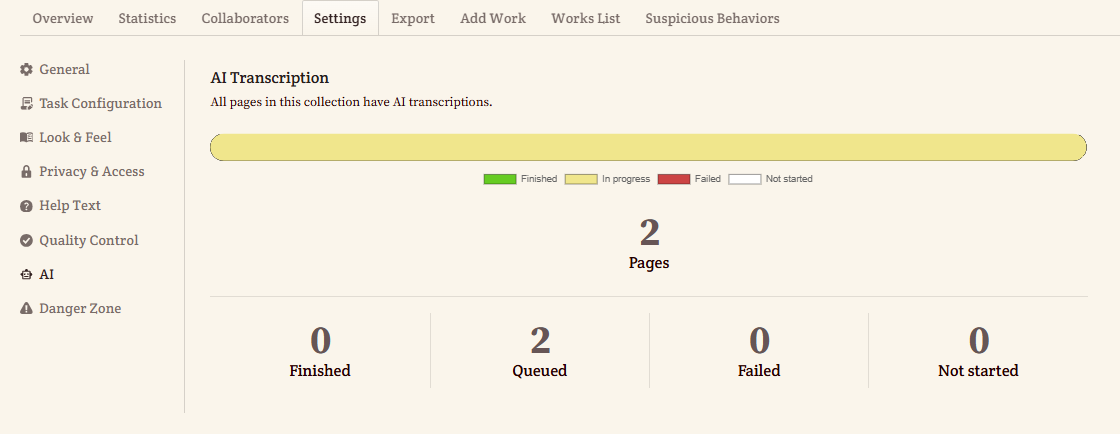
A progress bar shows how many pages are completed, queued, failed, and not started. The number of tokens used is displayed below.

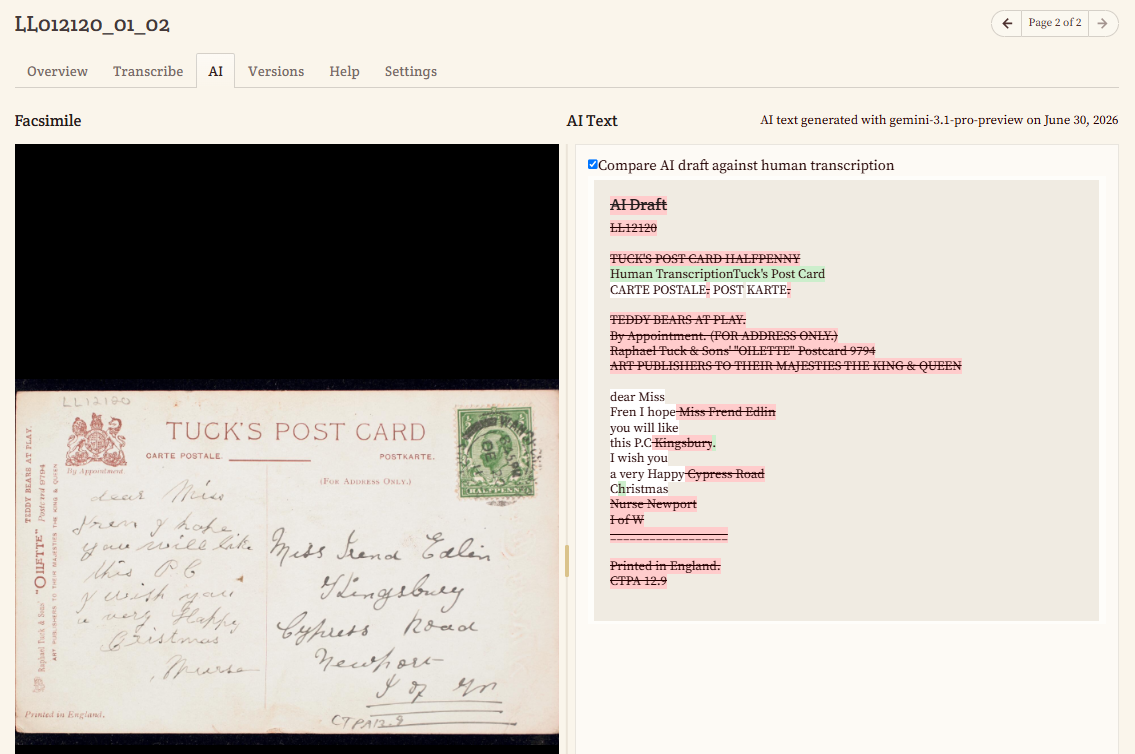
If you would like to transcribe first and then compare your work with AI drafts, open an individual work, go to the Transcribe tab, and start transcribing as usual. Once you are done, go to the AI tab and tick the box that says “Compare AI draft against human transcription” under AI Text.
A comparison will be made between the human transcription and the AI draft. Human Transcription is highlighted in green, while AI Draft is highlighted in red. Similar text is highlighted in white.
If you would like to start with AI drafts right away, go to the Transcribe tab and click the “AI Draft” button. Review the draft for accuracy against the image, edit as needed, and then remove the warning at the top of the page.

In the Versions tab, transcriptions created using an AI Draft will have a robot icon beside the revision date.
